Resolving Browser Cookie Errors
Last updated: April 2, 2025
Context
Greenlite's authentication services are upgraded periodically to maximize performance and security. In rare cases, the browser cookies used for authentication may end up in a bad state in between upgrade. This article outlines some quick resolution steps you can use on your browser to regain login access.
Chrome Resolution
Step 1
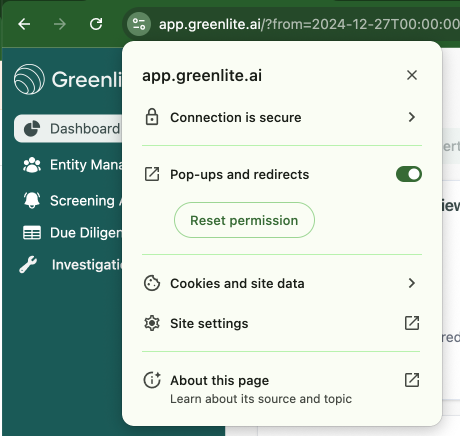
Find and click the settings icon beside the URL address bar.
Click 'Cookies and site data' once the popover appears.
Step 2
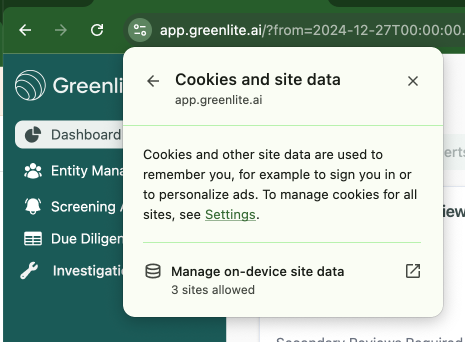
Click 'Manage on-device site data'
Step 4
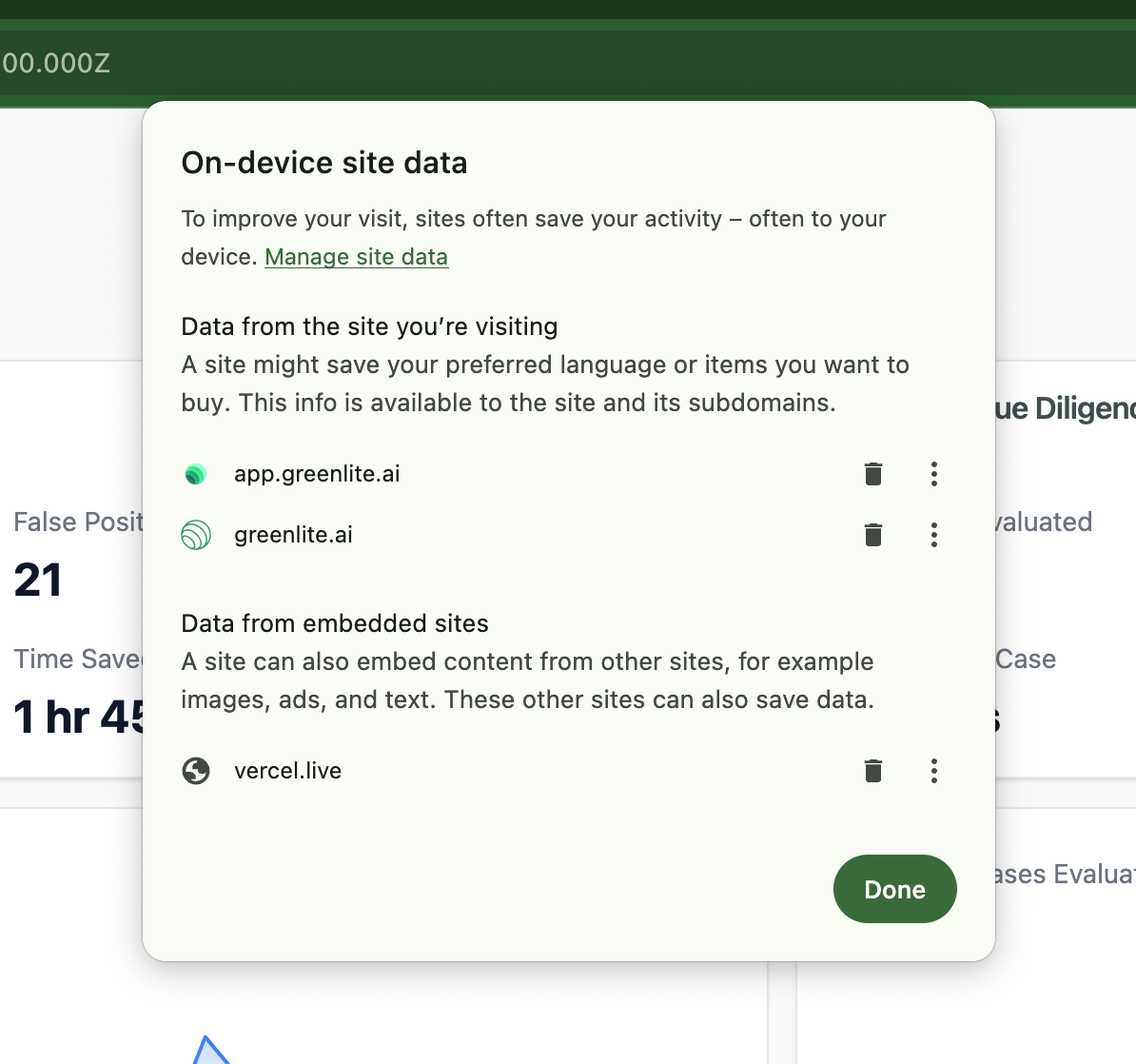
Click the trash icon to remove cookies from each domain.
Click 'Done' once you've completed clearing the data
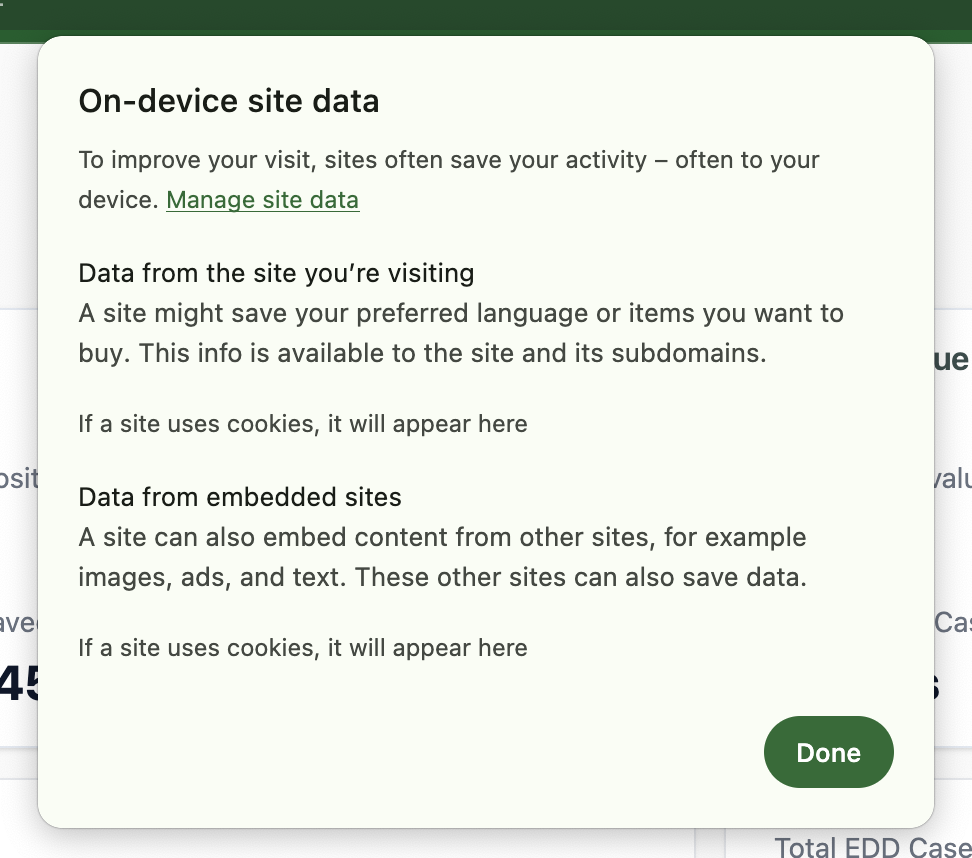
Step 5
Refresh your browser and expect to see the correct login page.